Controller Guide
🎮 How to set up a controller for Licentia NEXT
WHY YOU MIGHT NEED THIS?
You want to use a controller with Licentia NEXT. This guide will help you set it up properly.
These are the general steps to set up a controller for Licentia NEXT:
- Turn on Your Controller
- Run Setup Controller in the MCM
🕐 This process takes around 30 seconds.
Read through the entire guide for explanation of changes, mods used and finally, all the keybinds.
Step 1️⃣ — Turn on Your controller
You are on your own here 🎮
Step 2️⃣ — Run the Controller Setup MCM
-
Press
Escto open the menu, findMod Configurationand click it: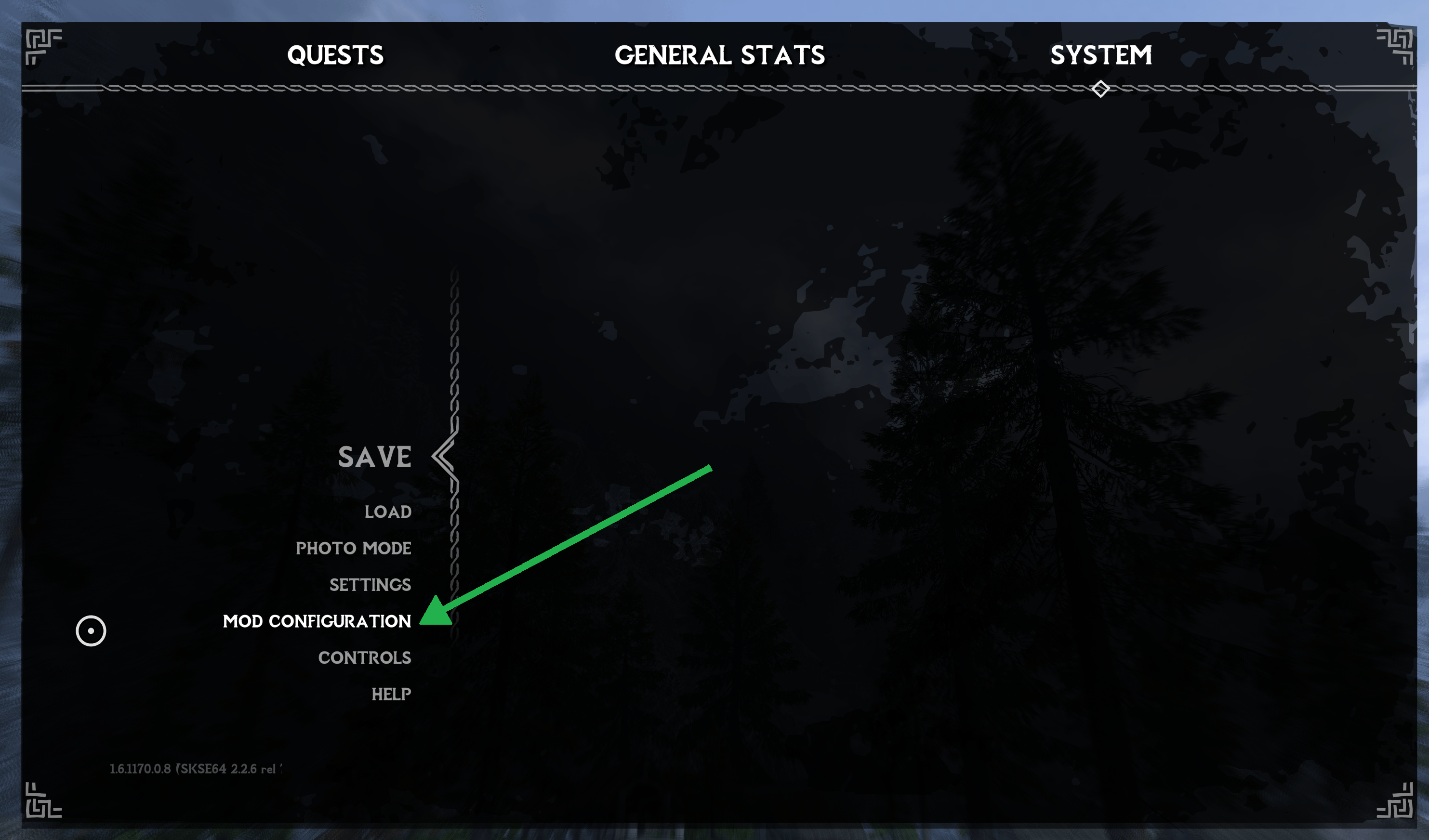
-
Scroll down until you find
MCM Recorderand click it (the list is in alphabetical order, so it should be around the middle):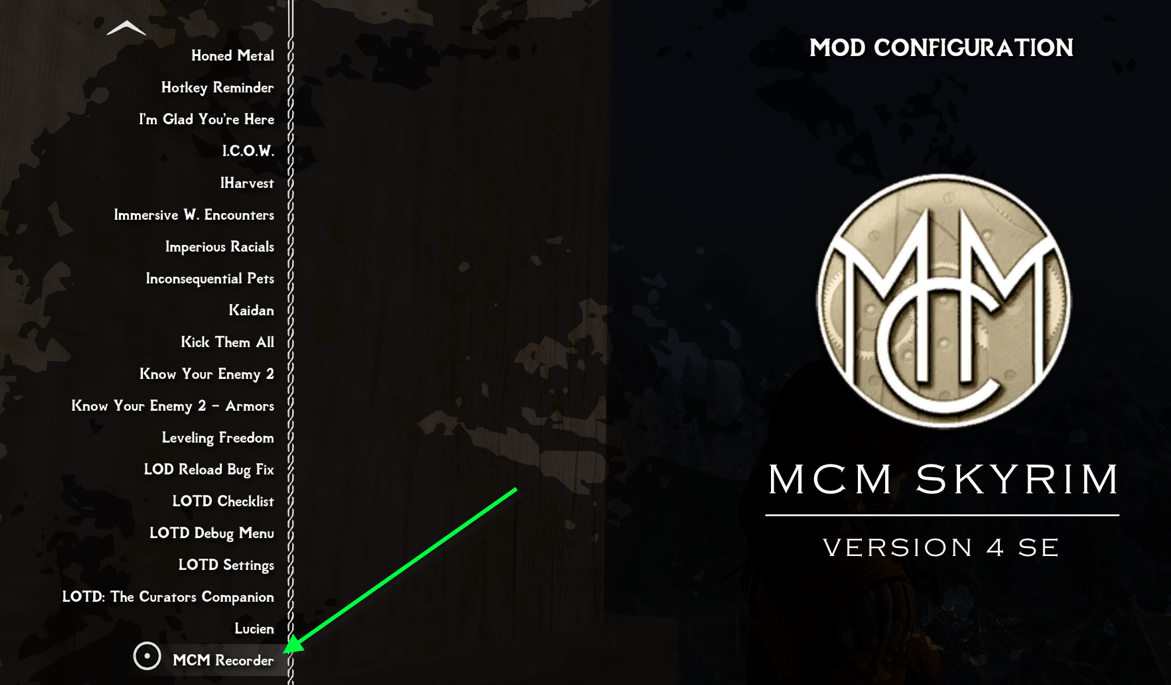
-
Find
Setup Controlleron the right and click it: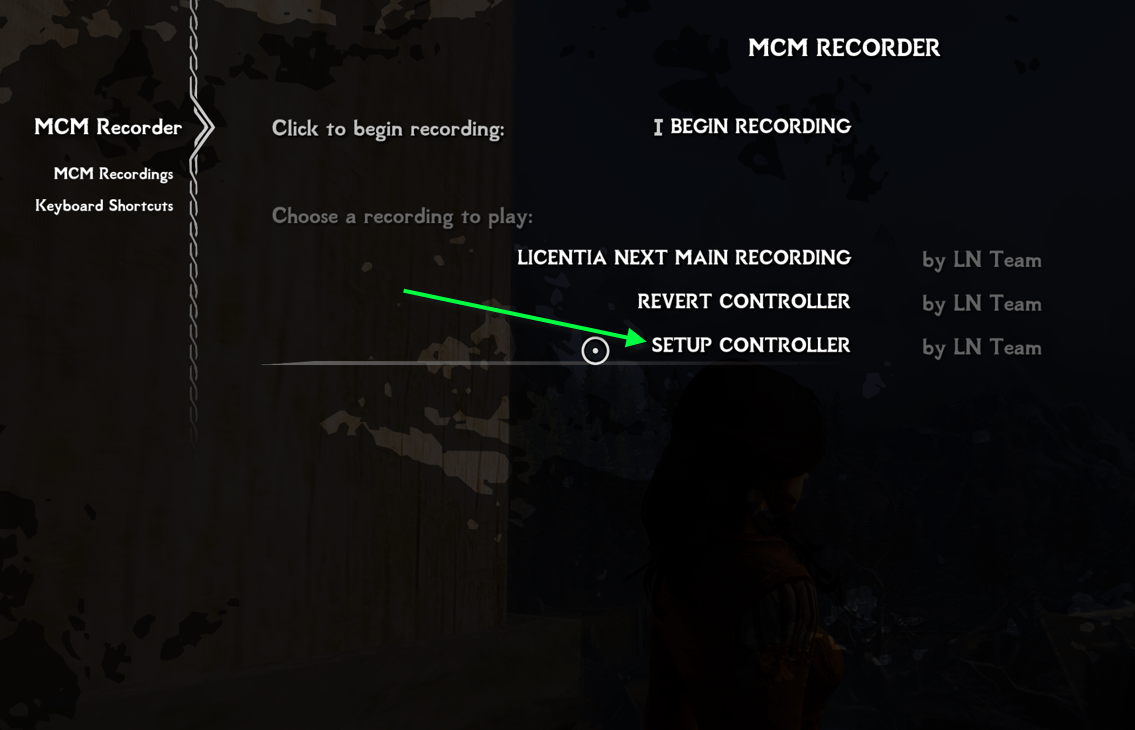
-
Follow the on screen instructions. When it completes - your are done!
If you want to revert controls back to Keyboard and Mouse setup ⌨️
Run the Revert Controller recording inside the MCM Recorder menu the same way you've run Setup Controller above.
That will put everything back to default configuration!
ℹ️ Additional Information
📝 Notable Changes
-
Wait function has been removed from the controller (meaning it's not a separate button anymore). That function is now available on the tween menu. Scroll to the right and you will find it!
-
The individual menus for
Magic/Power,Leveling,InventoryandMaphave been added. They're available throughWait+XYBArespectively. -
Sprinting can now be done with the
Left Stick (LS). By pushing the stick forward, you can walk, run and now sprint. When you first want to sprint - pushLScompletely forward and tapRB. You don't need to hold it anymore!This behavior stays in place until it is interrupted by dodging or some other disrupting action. To re-establish, tap
RBagain.
🛠️Mods Involved in Controller Setup
All of the needed mods are located inside this separator in Mod Organizer 2:

-
Licentia NEXT - Control Map changes keyboard setup of
TUCSto be compatible with the default Licentia NEXT's keyboard controls and adds individual menu selection. -
Auto Input Switch allows you to freely move between keyboard and the controller. Handy in many cases especially using
OStimcontrols. -
Serio's Cycle Hotkeys allows players to map hotkeys or use the vanilla hotkeys to equip weapons, shields, shouts, and spells in the right hand, left hand, and shout/power slots. It enables 8 Hotkeys on the controller. Explained at TUCS modpage.
-
Special Sprinting Revamped Provides sprint capability on Left Stick. For any questions see the modpage.
☑️ Reference - MCM Changes and Control Verification
This is just a reference section to verify that your MCM settings look like this. If you followed the guide, they should be exactly the same. If not, you can change them manually to match these screenshots.
-
Verify that Sneak is set to
B(it should be, but just in case). This is necessary forThe Ultimate Dodge Mod: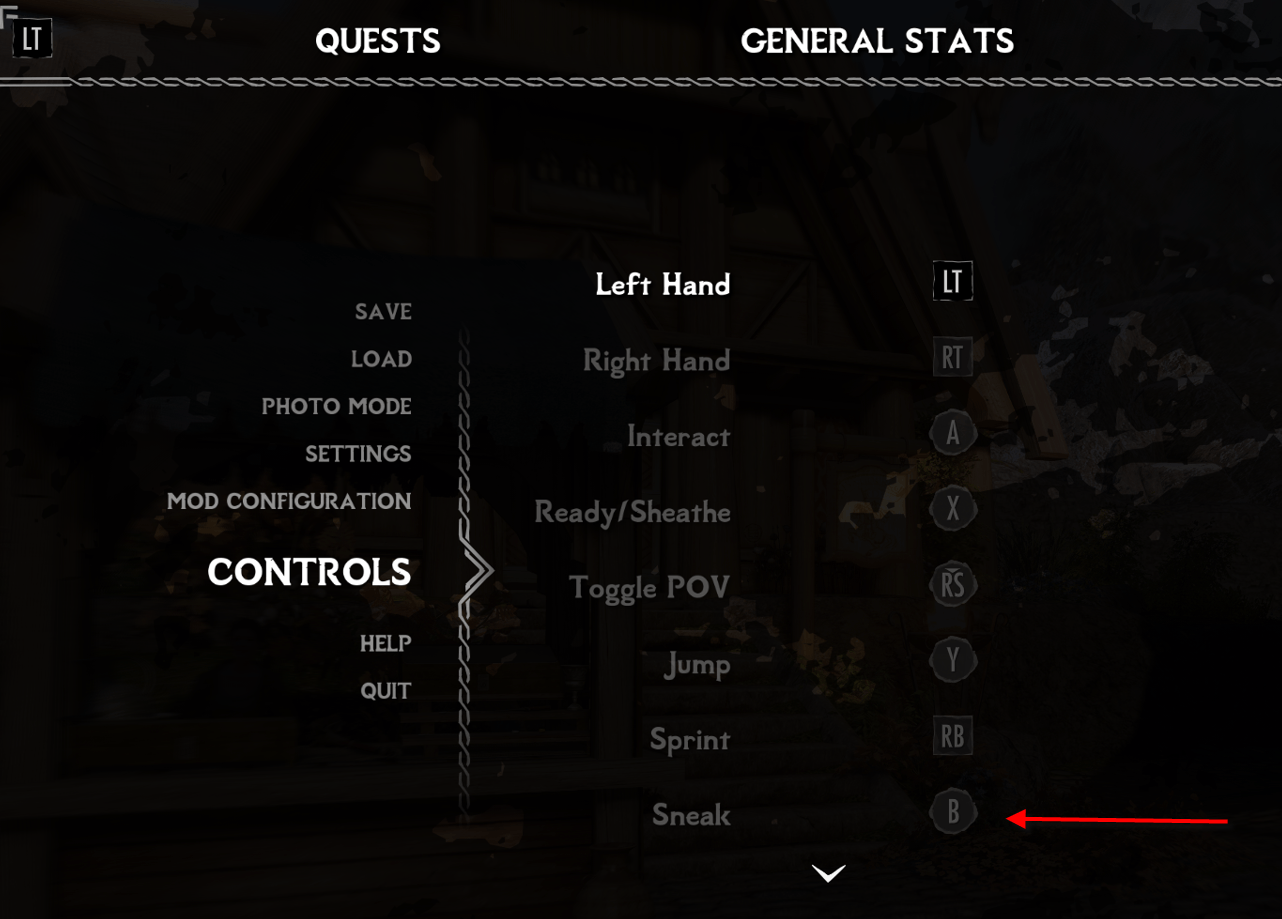
-
Verify CGO settings:
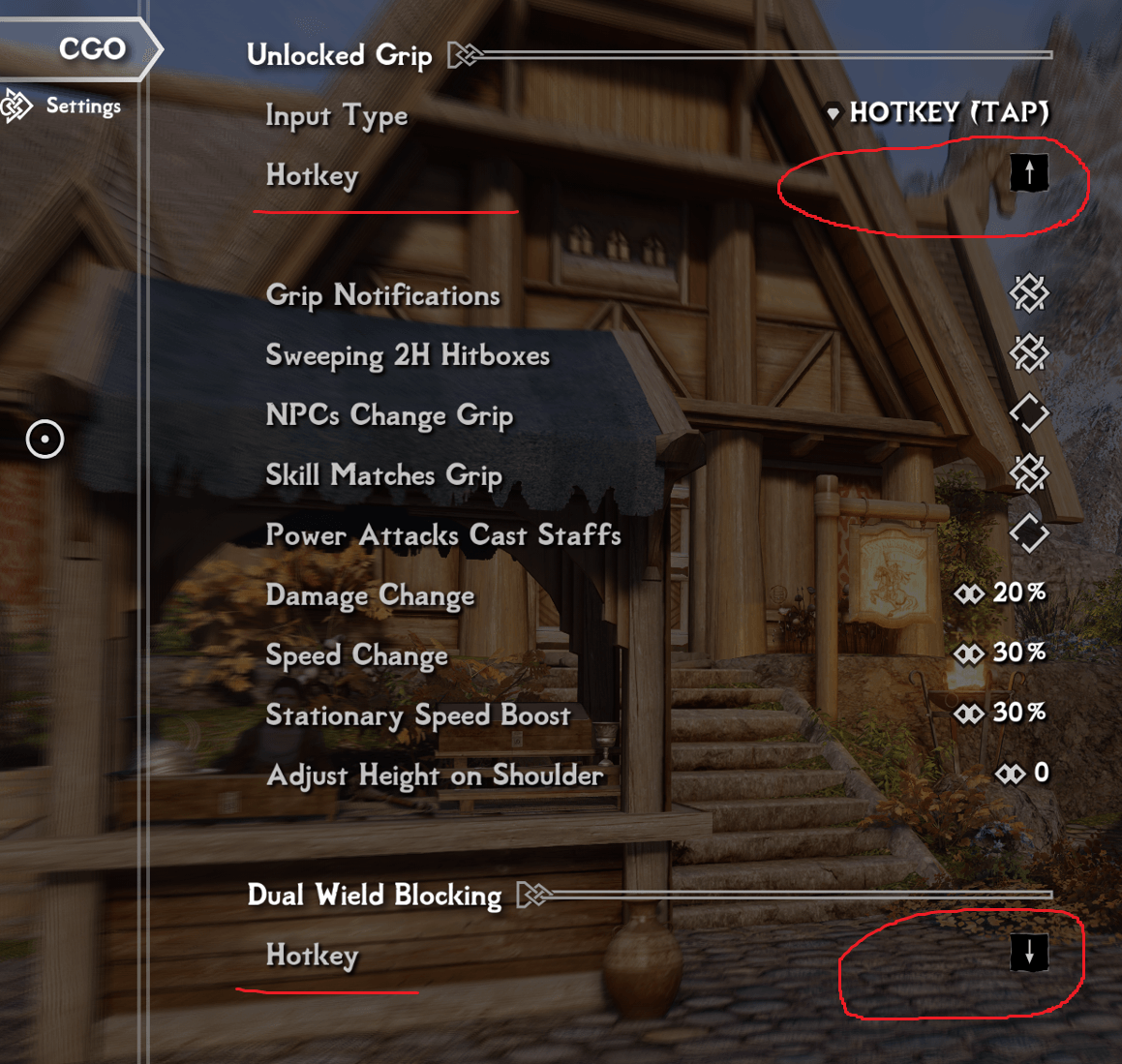
- Switch Grip -
DPad UP - Dual Wield Blocking -
DPad Down
- Switch Grip -
-
Verify The Ultimate Dodge Mod settings:
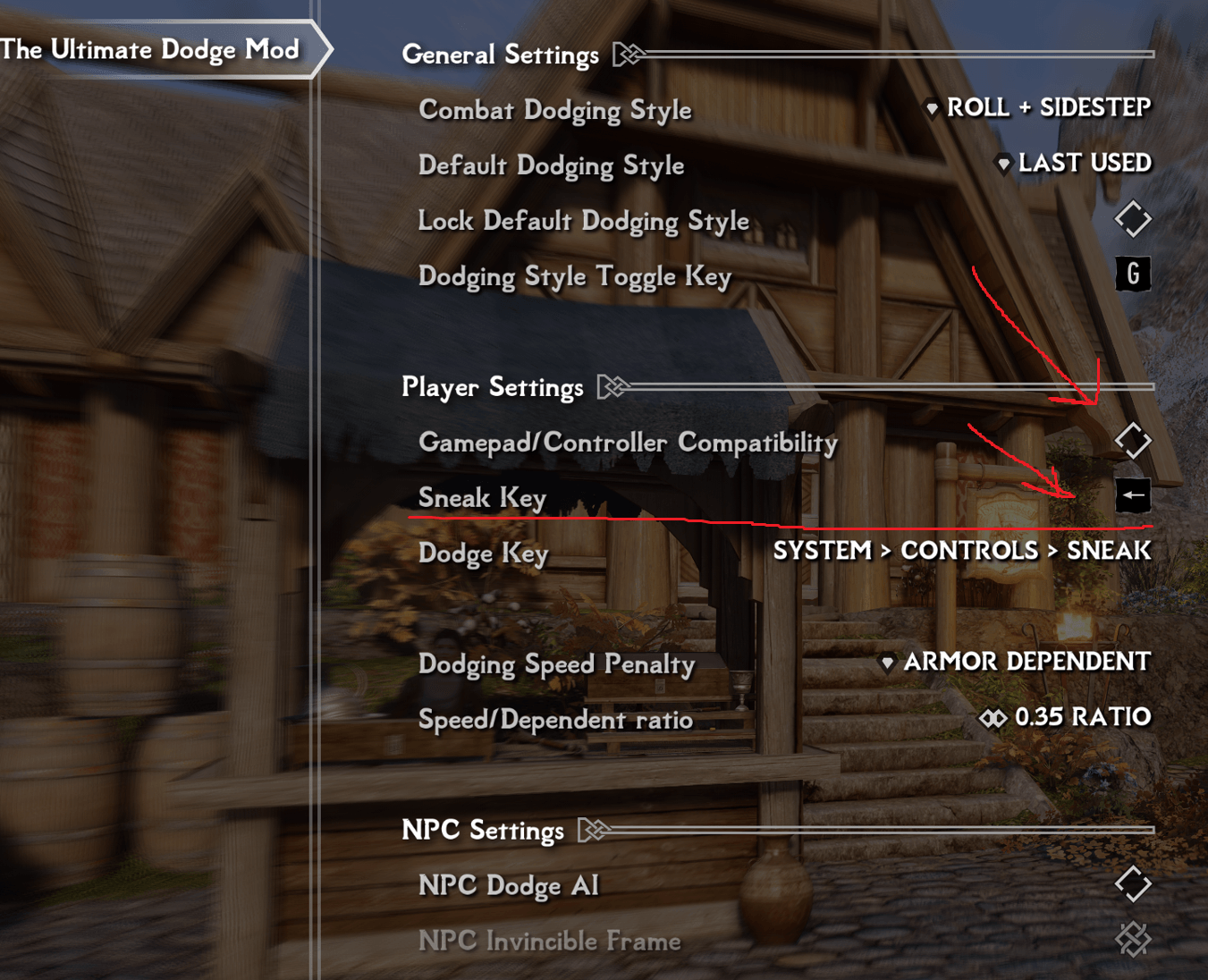
- Your Dodge Key will now be
B - Sneak is
DPad Left
- Your Dodge Key will now be
-
Verify Serios Cycle Hotkeys settings:
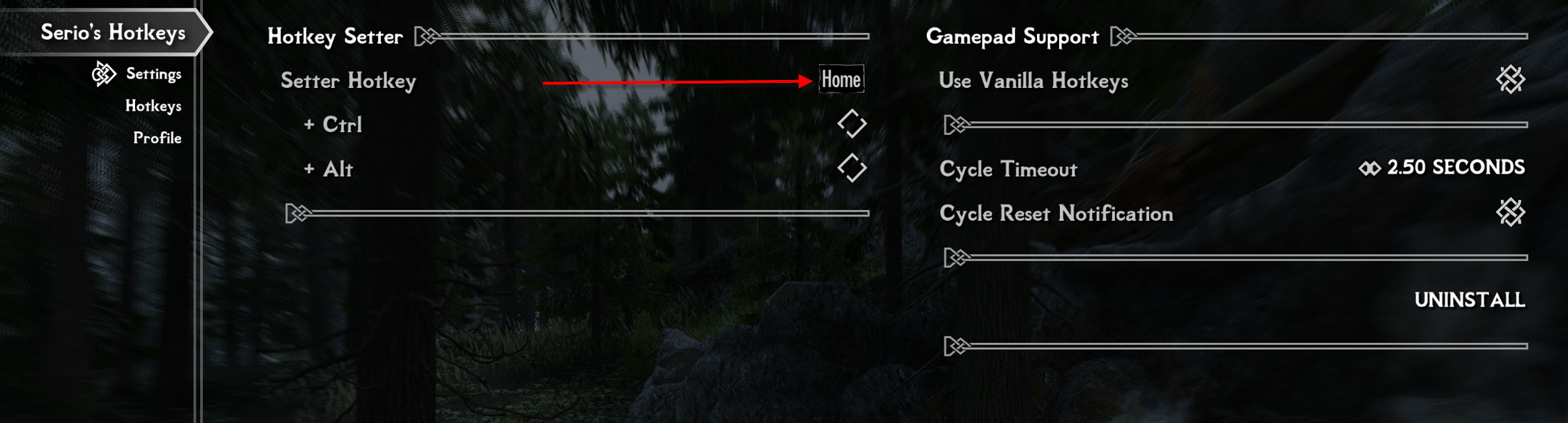
- Press
Homewhen you are in game and have weapons equipped - the mod's dialog will pop up, where you can set your keys. Refer to the mod page for detailed instructions!
- Press
-
Verify True Directional Movement settings:
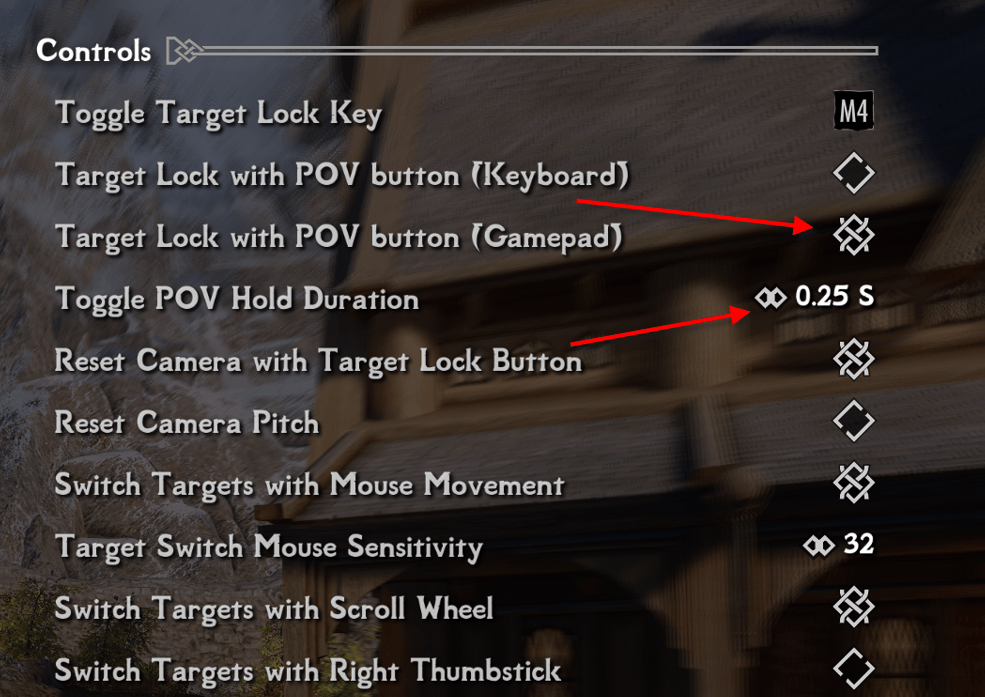
- Target Lock with POV button (Gamepad) is enabled
- Toggle POV Hold Duration is set to
0.25seconds
📌 Final configuration control map
Your control map now looks like this:
| Button | Action |
|---|---|
| Start | Journal |
| Back | Used as Modifier Key - Wait is on tween menu |
| LT | Left Attack |
| RT | Right attack |
| LB+Back | Quicksave |
| RB+Start | Tween menu (character menu) |
| LB+RB | Shout (in that order, you kinda have to roll your fingers across them) |
| LB | Looking for something to do |
| Double-tap LB | SKSE Menu |
| RB | Sprint (toggle) |
| LS | Favorites |
| RS | Target Lock/Long Press Switch POV |
| A | Activate |
| B | Roll/Dodge |
| X | Ready weapon |
| Y | Jump |
| DPad Left | Sneak / Stop Sneaking |
| DPad Right | Unused |
| DPad Up | Switch grip between 1-handed and 2-handed (CGO) |
| DPad Down | Dual Wield Blocking |
| Wait+X | Magic/Powers Menu |
| Wait+Y | Leveling |
| Wait+B | Inventory |
| Wait+A | Map |
That's all Folks! Go kill a dragon! 🐉