Nemesis Guide
👯♀️ How to re-run Nemesis for Licentia NEXT
This guide is for Licentia NEXT 13.6.1 and older only.
Starting with 13.7.0, Licentia NEXT uses Pandora Behaviour Engine instead of Nemesis - Nemesis and its output mod are no longer part of the list. If you are on 13.7.0 or newer, follow the Pandora Guide instead.
Never run Nemesis on a 13.7.0+ install, and never have both a Nemesis and a Pandora output mod enabled at the same time.
WHY YOU MIGHT NEED THIS?
You added/updated NSFW, regular or combat animations that don't work with DAR or OAR; if you don't rerun Nemesis - your characters will T-Pose.
You want to rerun Nemesis for any other reason.
These are the general steps to re-running Nemesis for Licentia NEXT:
- (optional) Make sure
Nemesis Unlimited Behavior Engine.exeis LAA patched - Clear Nemesis Cache
- Launch
Nemesis Unlimited Behavior Enginefrom MO2 - Setup behavior patches and click
Update Engine - Click
Launch Nemesis Engine - Close the tool, remove
FNIS.esp, done!
🕐 This process takes around 10 minutes. Let's dive into the details!
Step 1️⃣ — (optional) Make sure Nemesis Unlimited Behavior Engine.exe is LAA patched
Unfortunately, Nemesis is old and 32-bit. You will need to patch it with Large Address Aware (LAA) to prevent crashes.
It can be run without it, but it's highly recommended to patch it.
Here's how to do it:
-
Download Large Address Aware
-
Extract the archive anywhere you want.
-
Run
Large Address Aware.exe:
-
When the program is opened, click
Add->Files: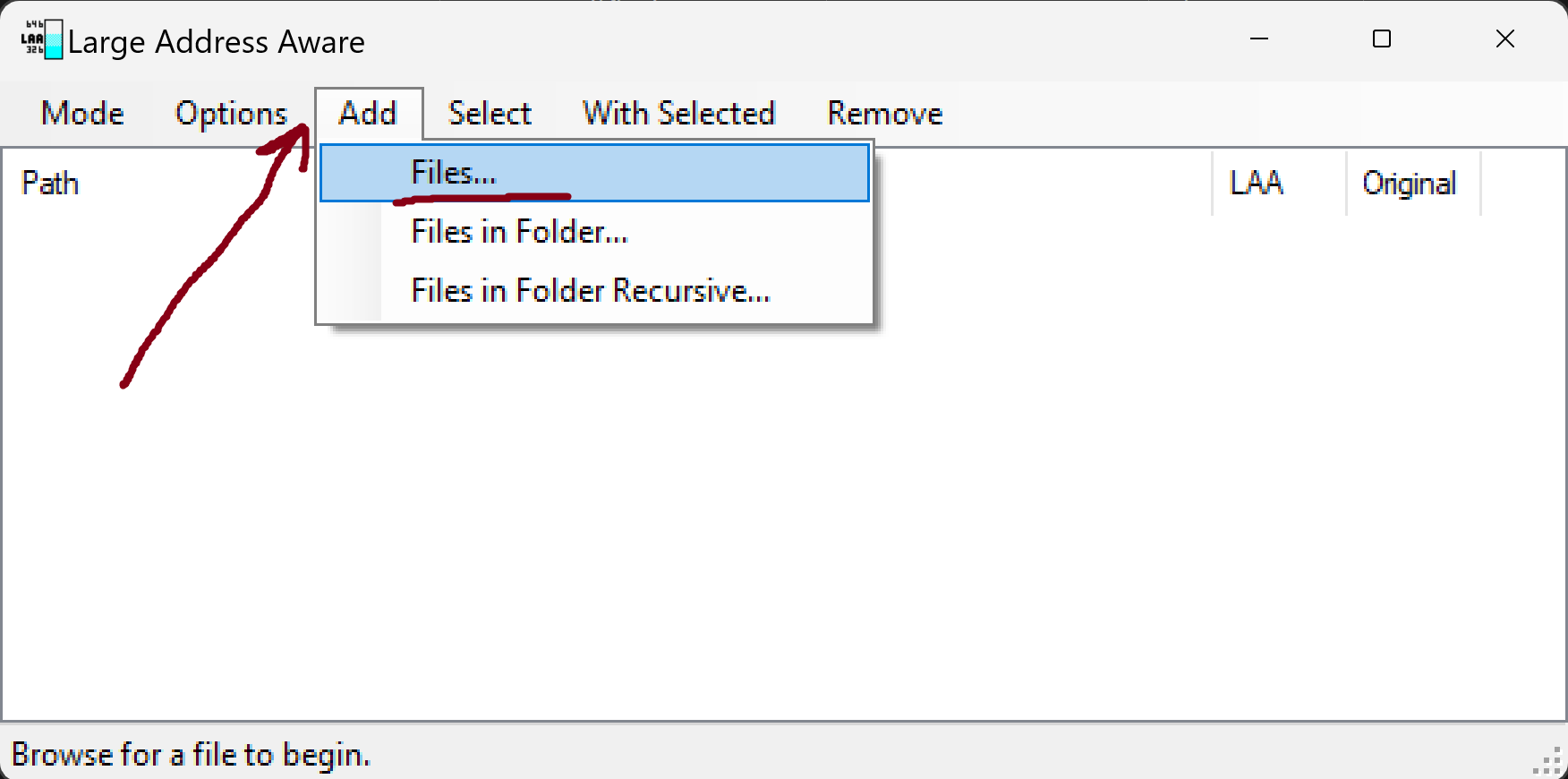
Navigate to
Nemesis Unlimited Behavior Engine.exein your MO2 mods folder (it would be something like%your_LN_install_path%\mods\Project New Reign - Nemesis Unlimited Behavior Engine - BLACK Profile\Nemesis_Engine\Nemesis Unlimited Behavior Engine.exe), and clickOpen: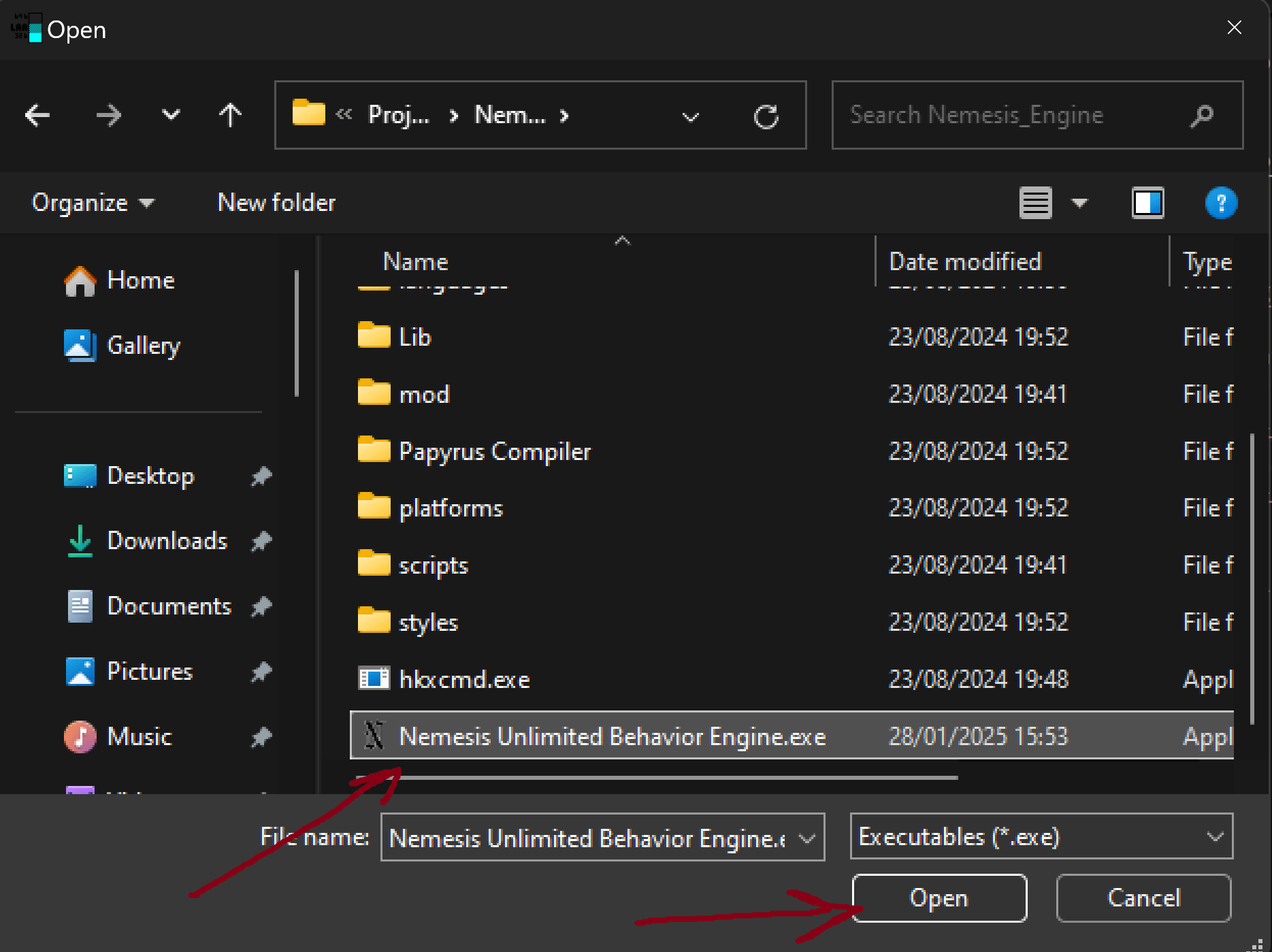
-
Now in
LAAwindow, click on the tickbox next toNemesis Unlimited Behavior Engine.exe(1), then openWith Selectedmenu (2) and clickForce Large Address Aware(3):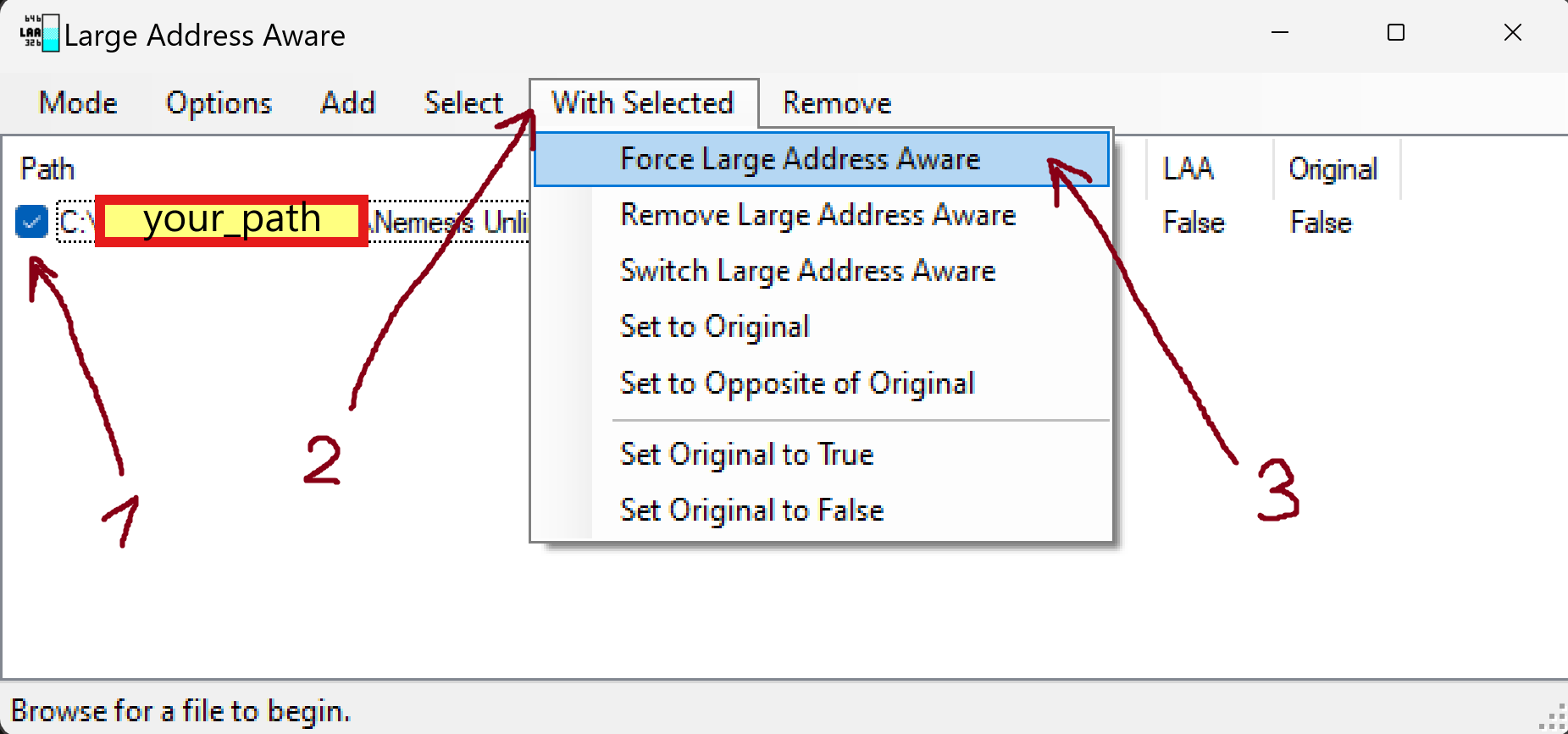
-
Now on the right side of the window make sure that field
LAAis set toTrue:
-
Close the program, you're done! Proceed to next step.
Step 2️⃣ — Clear Nemesis cache inside Licentia NEXT - Nemesis Output
-
Open your
MO2and in the left pane find the mod calledLicentia NEXT - Nemesis Output, right-click on it, pressOpen in Explorer: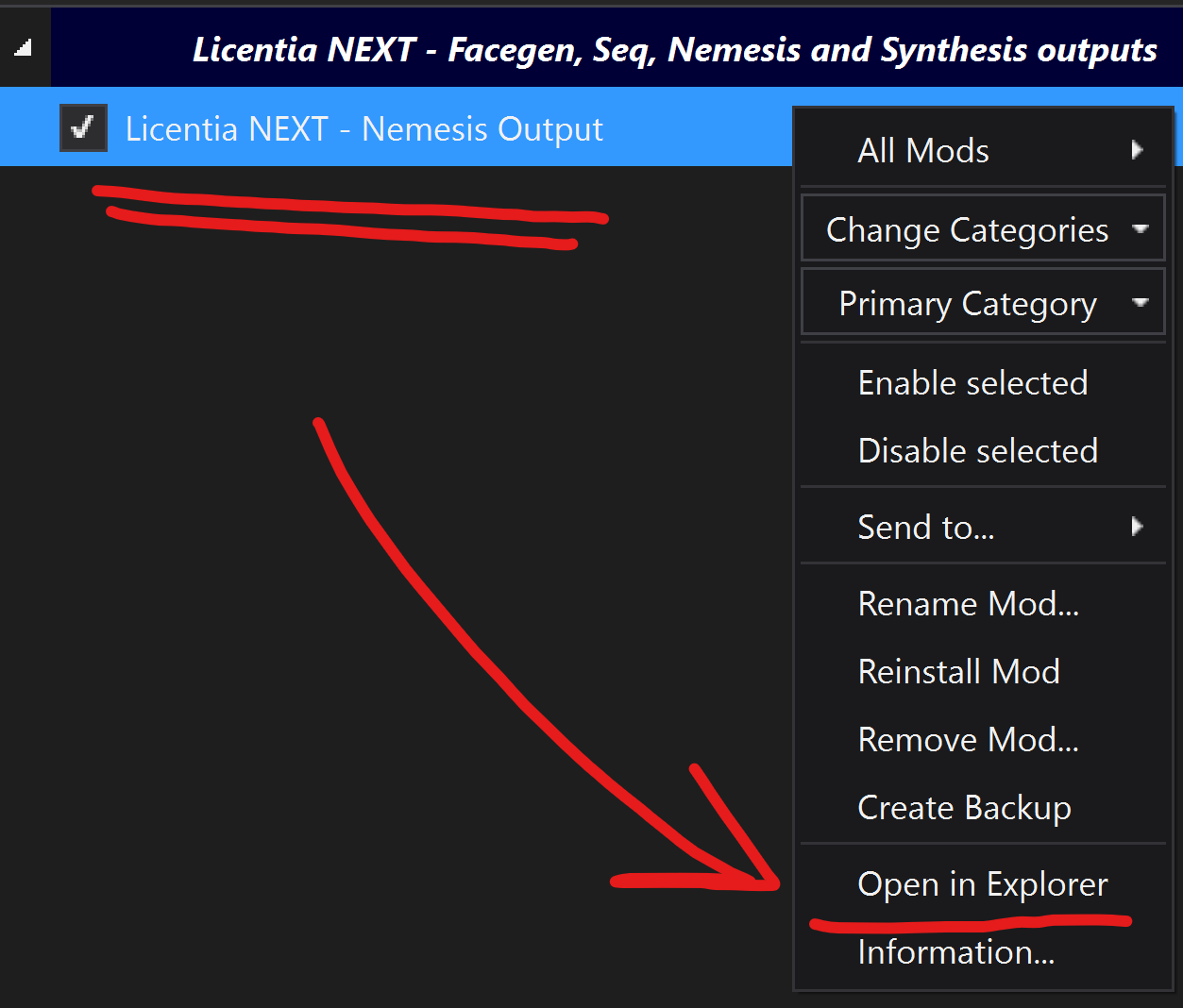
-
In the newly opened File Explorer window, navigate inside the
Nemesis_Engine\cachefolder and DELETE all files inside it: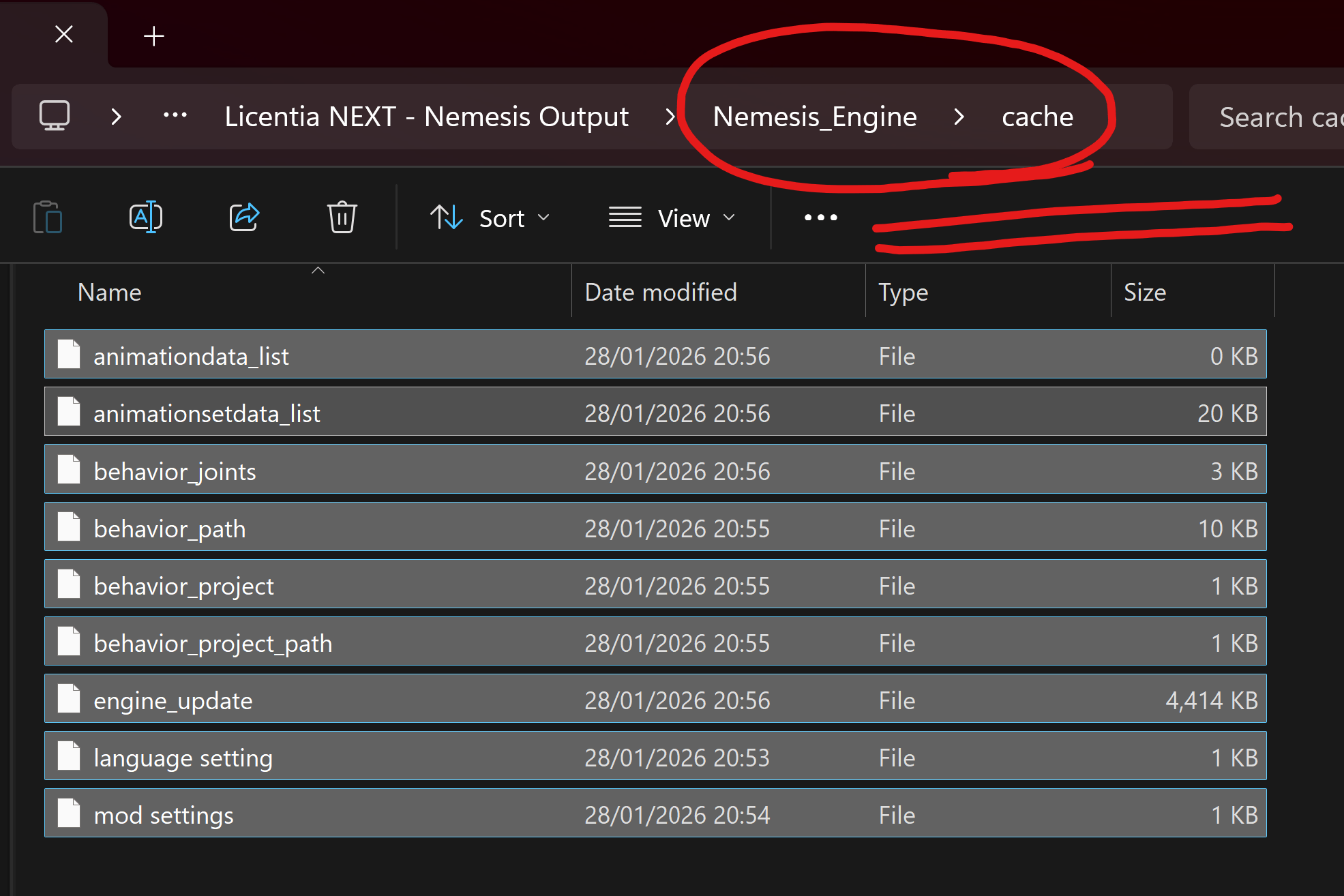
-
You can close the File Explorer window and proceed to the next step.
Step 3️⃣ — Launch Nemesis Unlimited Behavior Engine from MO2
Ensure that all antivirus and antimalware applications are temporarily disabled. They often prevent Nemesis from completing correctly.
In MO2, in top right corner of the window, click on the dropdown menu and select Nemesis Unlimited Behavior Engine, then click Run:
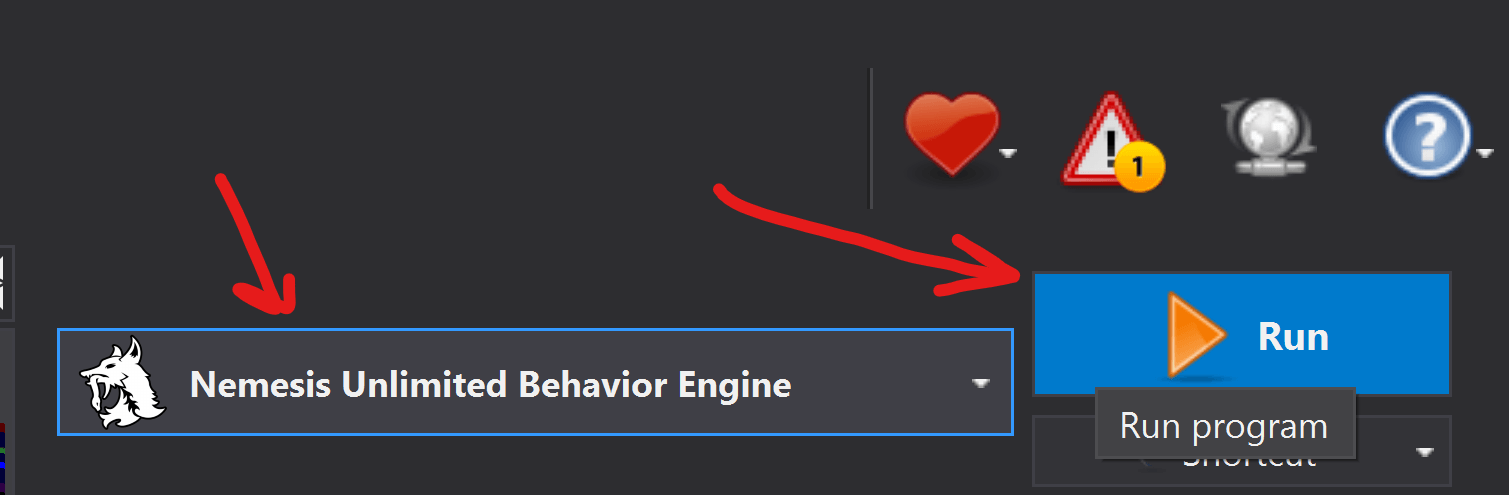
You would get a couple of Warnings after the tool has opened - IGNORE THEM, just click Ok and proceed. They appear because we've cleared the cache, which is fine.
Step 4️⃣ — Setup behavior patches and click Update Engine
-
When
Nemesiswindow opens, in it's top part tick the boxes for the following patches:- Archery Gameplay Overhaul SE
- Precision
- Precision Creatures
- TUDM Attack Cancel
- Extra Drawing Animations
- Combat Gameplay Overhaul SE
- Dual Wield Behavior Fixes
- Horsepower - Modernized Horse Riding
- Skyrim's Paraglider
- True Directional Movement - 360 Horse Archery
- The Ultimate Dodge Mod
- USSEP Behaviour Patch
That's where you should tick them:
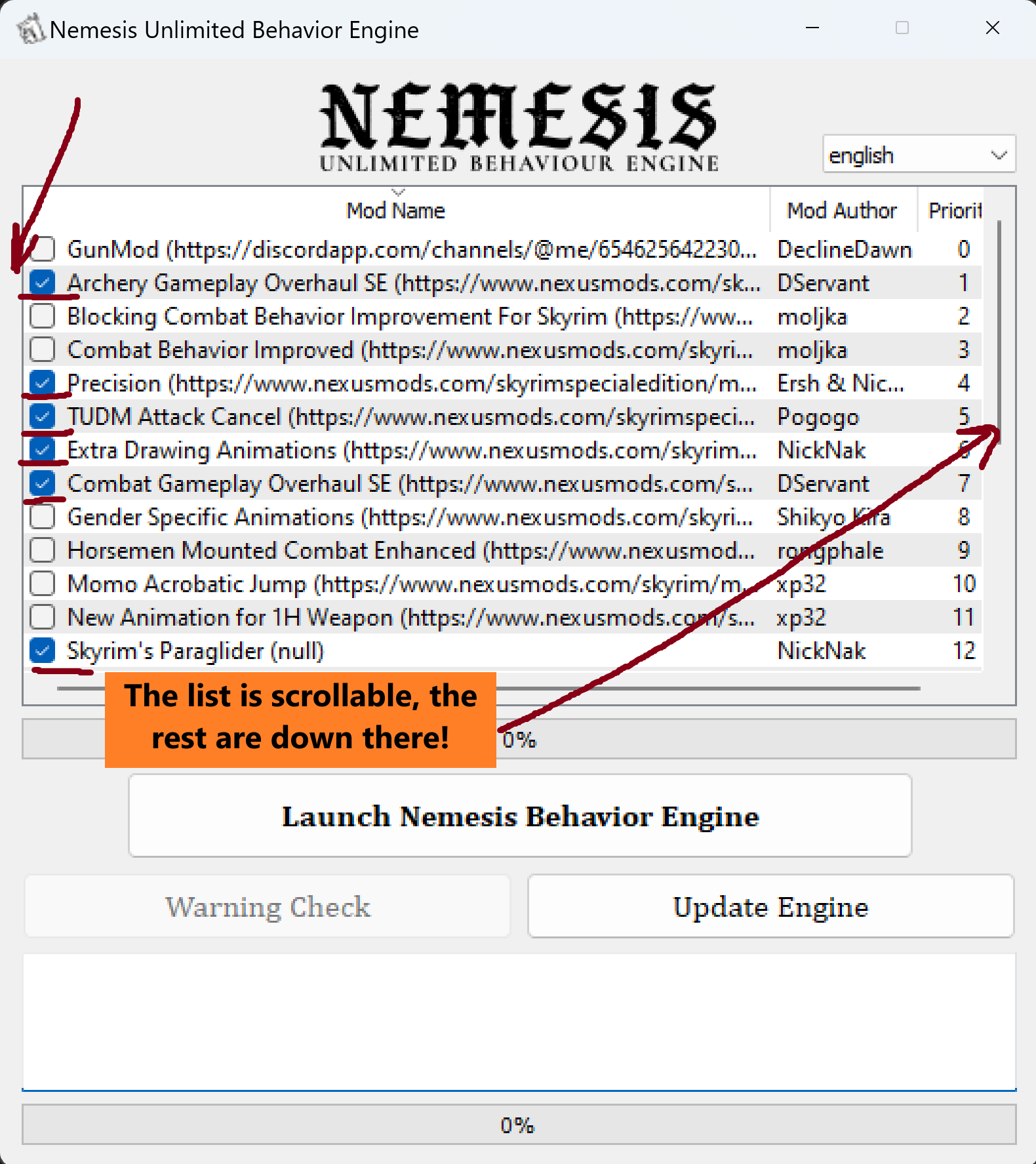 tip
tipIt's the default list for Licentia NEXT, if you have any additional mods that require Nemesis and provide a patch, make sure to tick them as well.
-
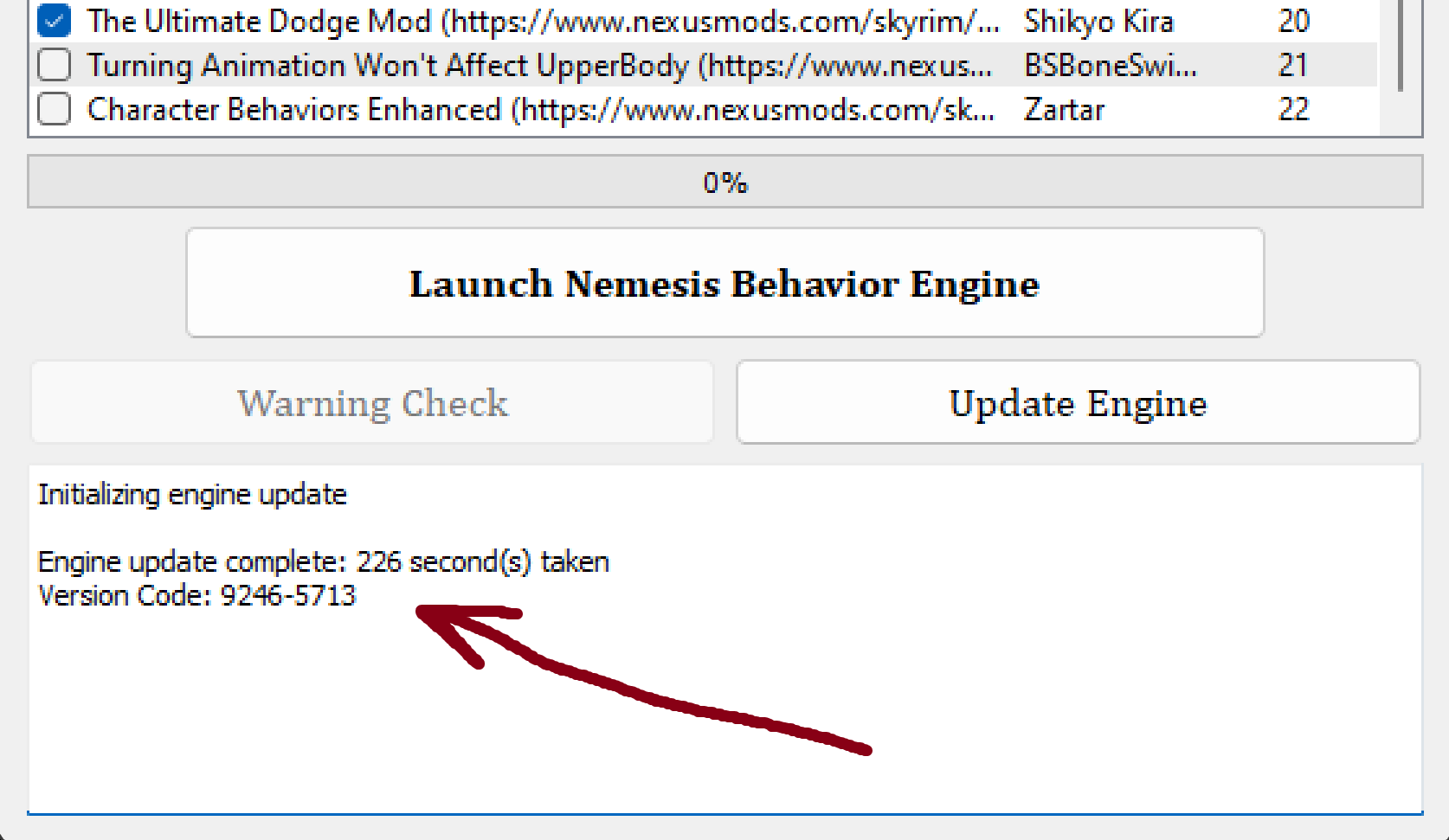
Click
Update Engine: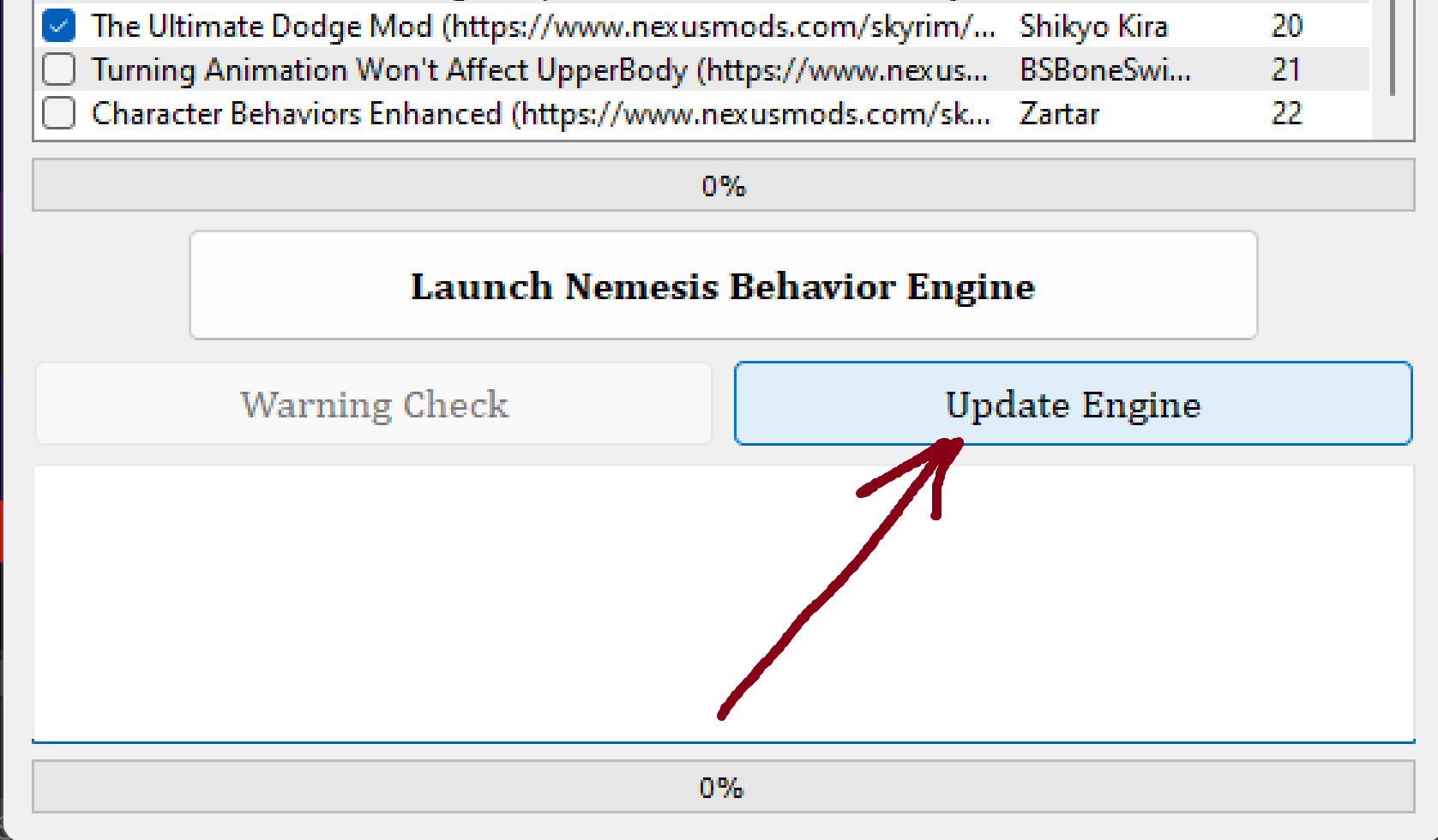
Wait for the process to finish (wait for the bar on the bottom to reach 100%). It will take a few minutes, so be patient:
 warning
If the process errors out - you will need to keep trying until it completes. If you can't get it to go after multiple tries - there's something wrong with your additional animation mod's behavior files, and you will be forced to discard it.
Step 5️⃣ — Click Launch Nemesis Engine
-
Click
Launch Nemesis Behavior Engine.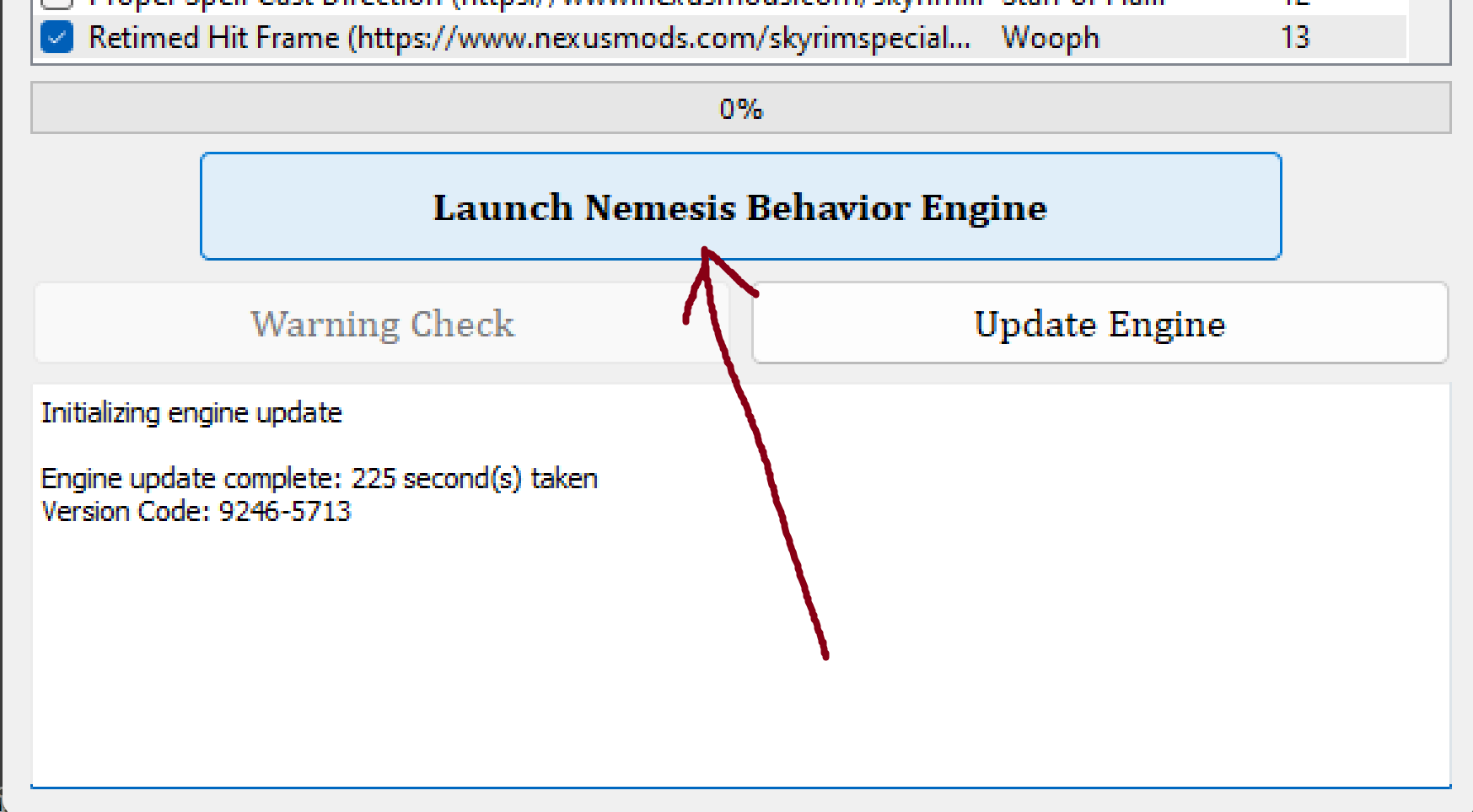
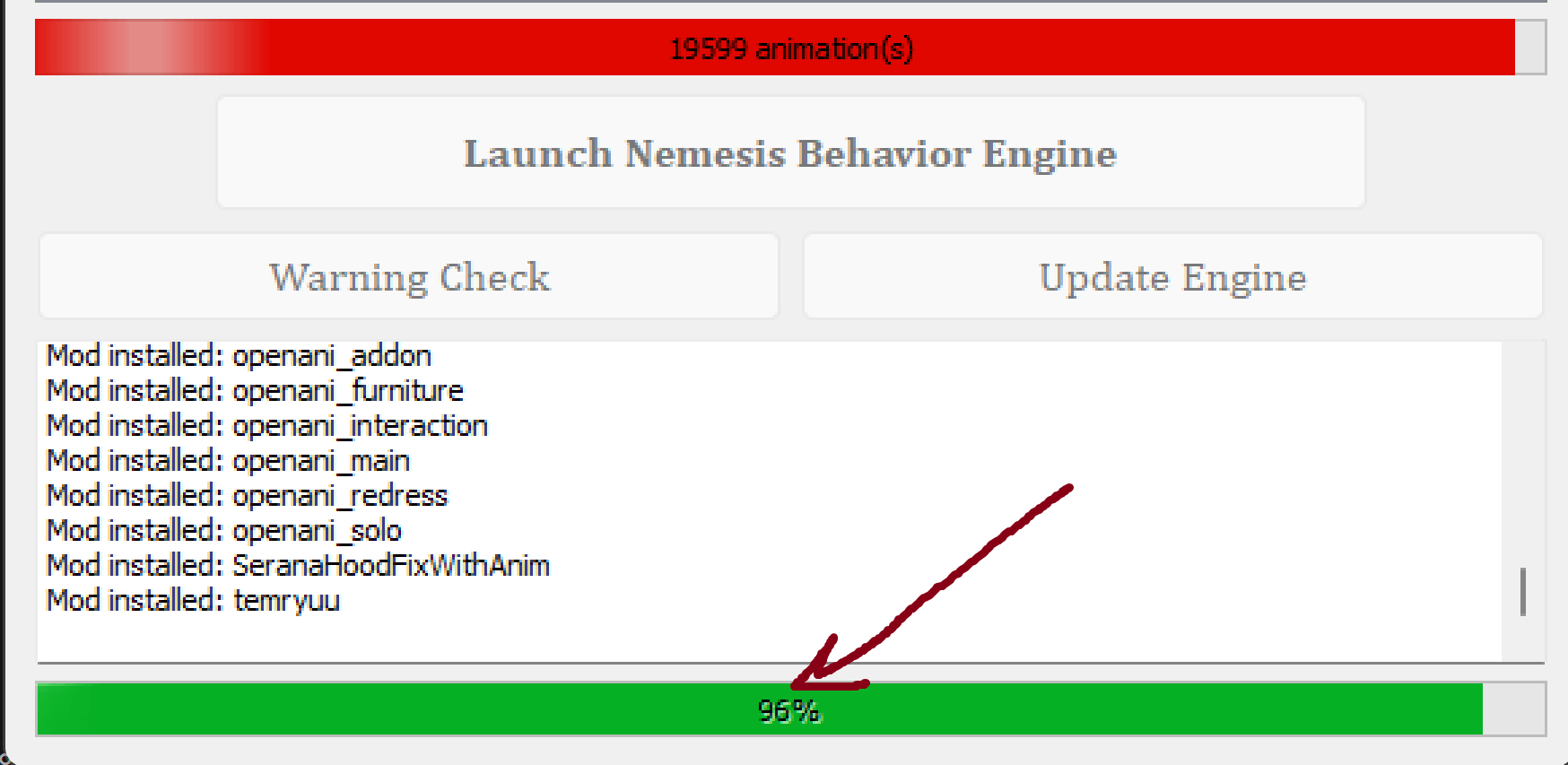
The tool will now slowly integrate your animation files into the behaviors:
 tip
tipThis process may look as if it is stuck or not responding, give it about 5 minutes before giving up.
If it does not complete, or it does not reach 100%, your run has errored out and you must keep trying.
notePlease note (cause I've been asked about this a few times) - the real progress bar is AT THE BOTTOM!
The bar on top (under patches) is just showing the amount of animations that you have. It's ok for it to turn RED, just make sure it doesn't exceed the limit (i.e. reach fully to the right)
-
When you see that the engine is fully done (bar at the bottom reaches 100% and disappears, and the log says
Behavior generation complete) - closeNemesisand return toMO2.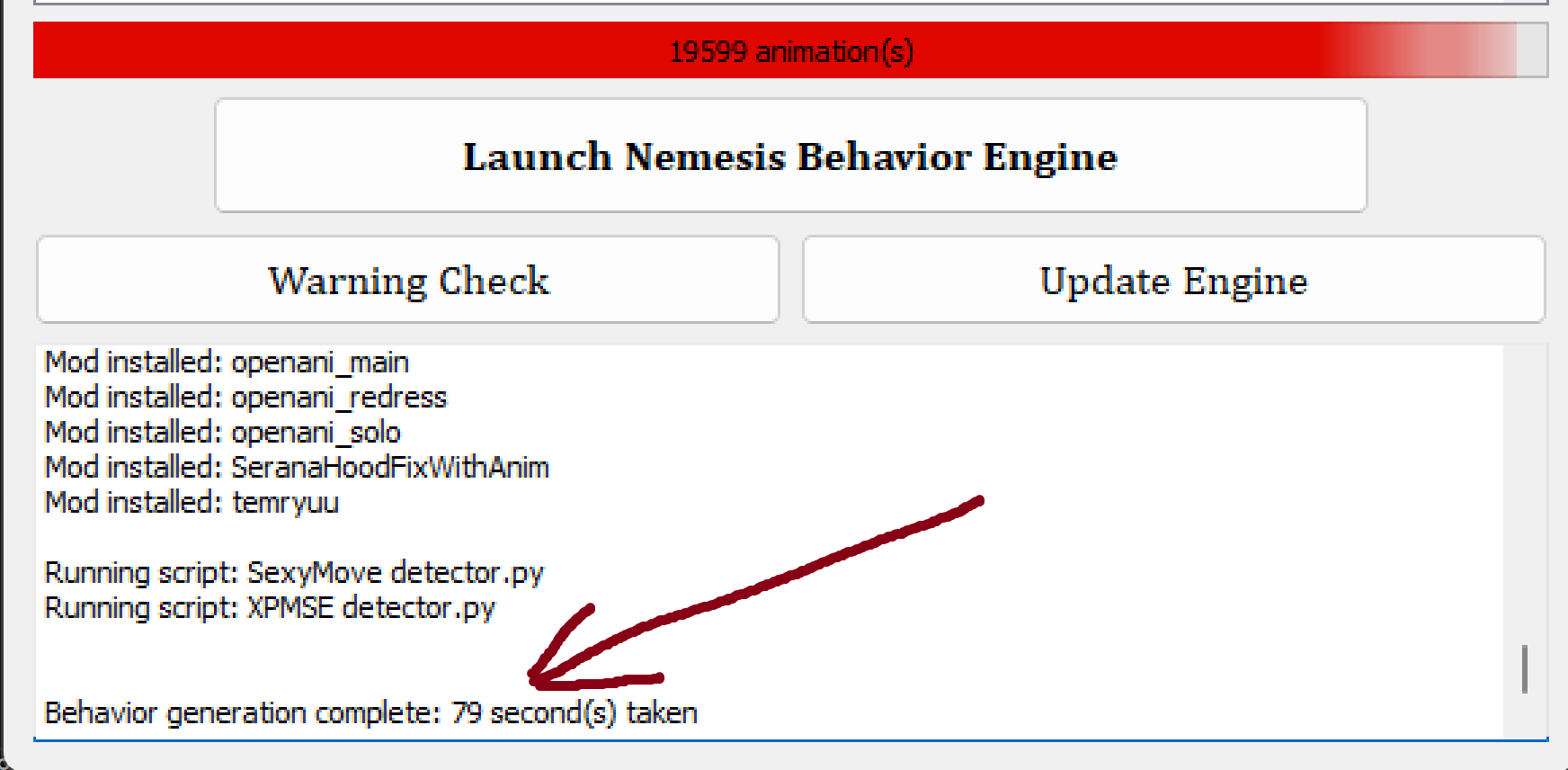 warning
Nemesis is prone to crashing during generating behaviours, especially if you didn't do the first (optional) step.
But don't worry! You can just relaunch it and start from step 4, it won't break anything.
ℹ️ Here's some additional troubleshooting steps just in case
Sometimes this step will never complete regardless of how many times you try and additional troubleshooting is needed. There are still options to fix this however!
- Find the
Licentia NEXT - Nemesis Outputmod on the left pane in MO2, open it in explorer and delete every file located inside, then refresh MO2 by striking theF5key. - Ensure that your
Licentia NEXT - Nemesis Outputfolder is still empty and launch Nemesis a final time. It will prompt for your language - make certain that it is English - and you will need to check all the proper boxes again as in step 4. Then do next part of step 4 and step 5 once more. - If this STILL does not work, you must reset all default behavior files by reinstalling the mod
Project New Reign - Nemesis Unlimited Behavior Engine - BLACK Profileunder the SFW Animations section of MO2. You can do this by simply right-clicking on it and choosingReinstall. There shouldn't be any options you need to configure. It should be almost guaranteed to work this time. If it doesn't, I am stumped, and you will need to resort to Google. - Once you do finish running Nemesis successfully, refresh MO2 with the
F5key.
Step 6️⃣ — Close the tool, remove FNIS.esp, done!
-
As the tool is now closed, in right MO2 pane in
Pluginssection you'll see that a wildFNIS.espappeared at the end!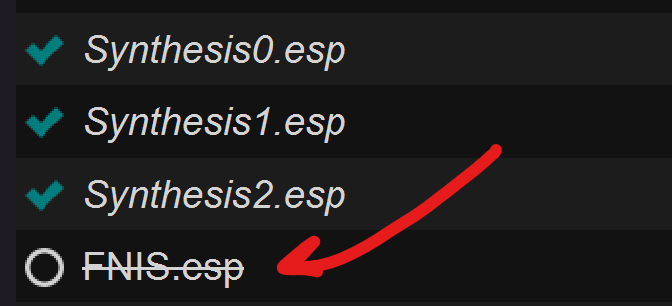
-
We don't need it, so:
-
Right-click it, select
Open Origin in Explorer: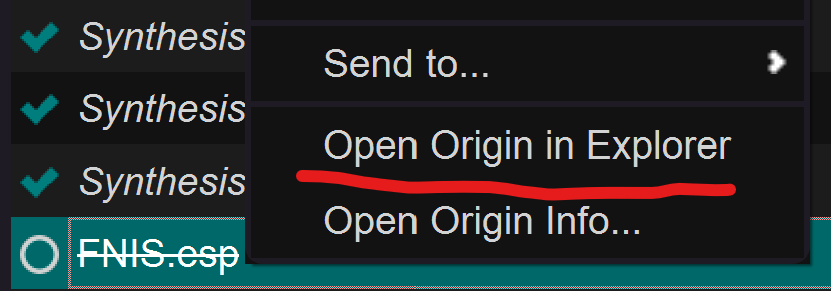
-
Delete the
FNIS.espin the opened explorer window: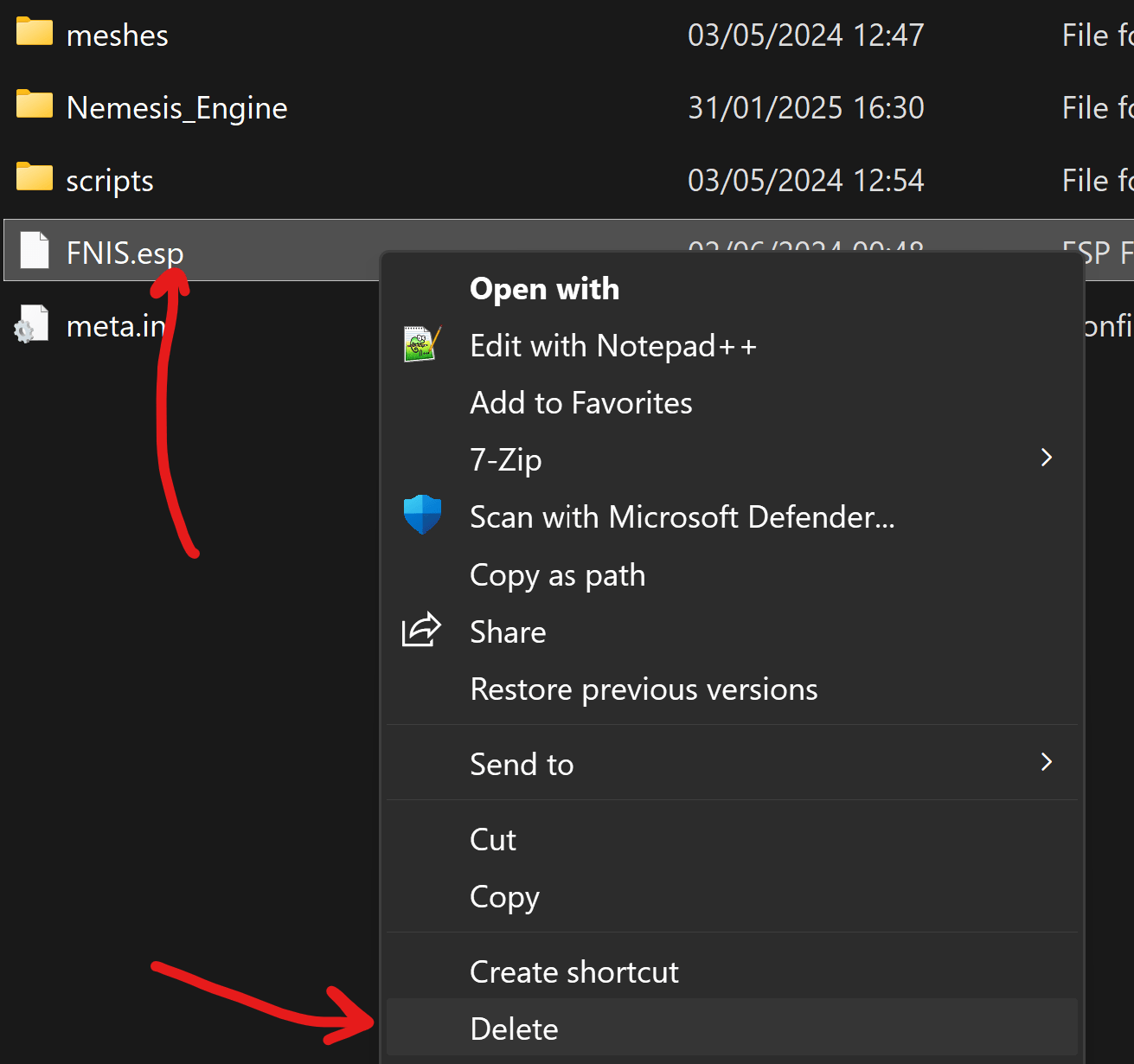
-
-
Close the folder that was opened and return to
MO2, hitF5to refresh the modlist, and that's it, you're done! 👑