Synthesis Guide
♻️ How to re-run Synthesis for Licentia NEXT
WHY YOU MIGHT NEED THIS?
You added/updated various mods that are affected by Synthesis (new locations, armors, food, etc).
You want to rerun Synthesis for any other reason.
These are the general steps to re-running Synthesis for Licentia NEXT:
0. (first run, or after a Synthesis update) .NET 10 SDK, the Data Folder setting, and when to run outside MO2
- Disable old
Synthesisoutputs - Launch
Synthesisfrom MO2 - Check the patches list
- Run
Synthesis3 times - Move your new generated Synthesis outputs to a separate mod
- Enable plugins disabled in Step 1️⃣
🕐 This process takes around 5 minutes. Let's dive into the details!
Step 0️⃣ — First run, or after updating Synthesis
Skip this if you have run Synthesis before and have not updated it since. Otherwise read it once - two of these will silently waste your time if they are wrong.
🟡 .NET 10 SDK
Synthesis now needs the .NET 10 SDK.
Earlier versions of this guide told you to install .NET 8 and to remove .NET 9 and .NET 10. That is out of date - the bug behind it is fixed. Install the .NET 10 SDK (not just the Runtime - patchers are compiled on your machine, which needs the SDK). Leaving .NET 8/9 installed alongside is fine.
Check what you have with dotnet --list-sdks in a terminal. You want a 10.0.x line.
🟡 Updating Synthesis itself
Synthesis does not update itself. Per the official instructions, keep it reasonably current:
- Download the latest release from the GitHub releases page.
- Back up these first - they hold your entire patcher setup:
PipelineSettings.jsonGuiSettings.json- the
Data\folder
- Unzip over your existing install, or unzip somewhere new and copy those three back in.
In Licentia NEXT, Synthesis lives at <your modlist folder>\tools\Synthesis.
If an update ever leaves the patcher list empty, you overwrote PipelineSettings.json. Restore it from your backup - nothing else needs to be redone.
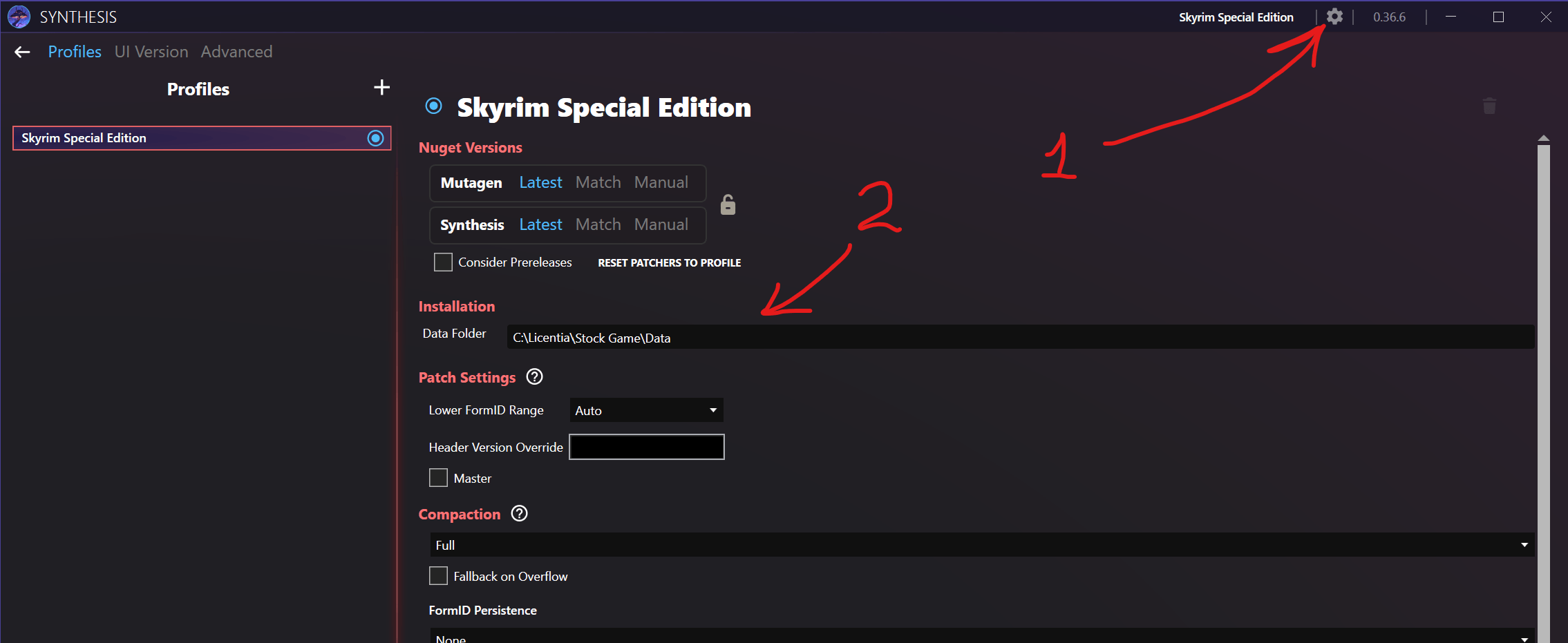
🟡 Check Data Folder setting in Synthesis
You NEED to make sure that this setting is set up correctly (usually it is, but check anyway after launching Synthesis for the first time in Step 2).
Click the Gear icon on the top right of Synthesis window (1), and then make sure that Data folder field is correctly populated (should be <your_licentia_install_path>\Stock Game\Data):
🟡 MO2 mode — when to run Synthesis outside MO2
Recent Synthesis versions refuse to build patchers while running inside MO2 (BlockBuildingWithinMo2 in PipelineSettings.json). Building means compiling a patcher's source, which needs the SDK and does not work reliably through MO2's virtual filesystem.
That splits your workflow in two:
| What you're doing | How to launch |
|---|---|
| Adding a patcher, updating one, or changing patcher versions | Run tools\Synthesis\Synthesis.exe directly, by double-clicking it - not through MO2 |
Running the patchers to generate Synthesis0/1/2.esp | Run it through MO2, as in Step 2️⃣ below |
So: add or update patchers outside MO2, let them finish building, close Synthesis, then relaunch it from MO2 to actually produce the patches.
Both launch methods share the same PipelineSettings.json, so patchers you add outside MO2 are there when you come back in. The Data Folder setting above is what lets the direct launch still see the right game.
Step 1️⃣ — Disable old Synthesis outputs
-
Open your
MO2, in left pane find mod calledLicentia NEXT - Synthesis Outputand disable it: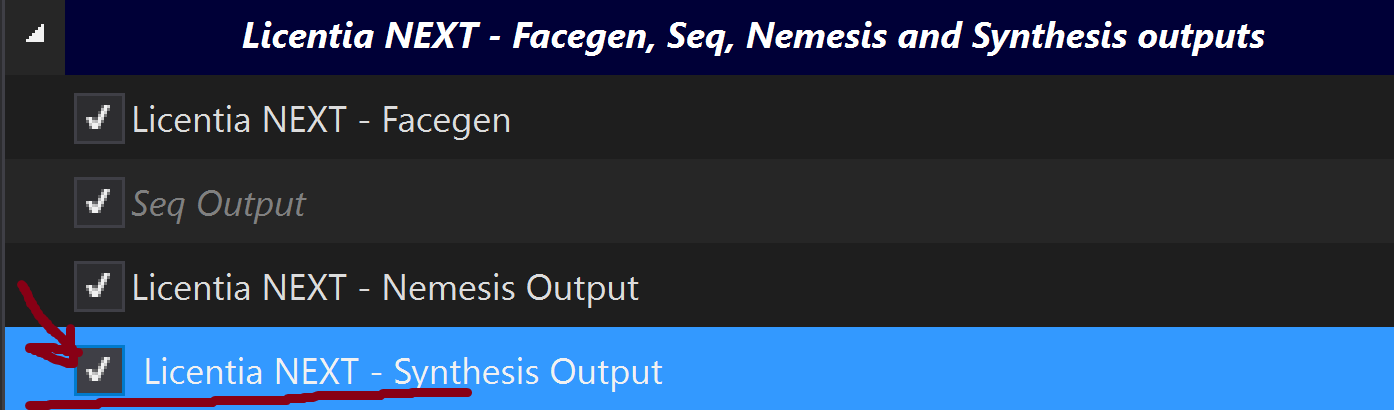
-
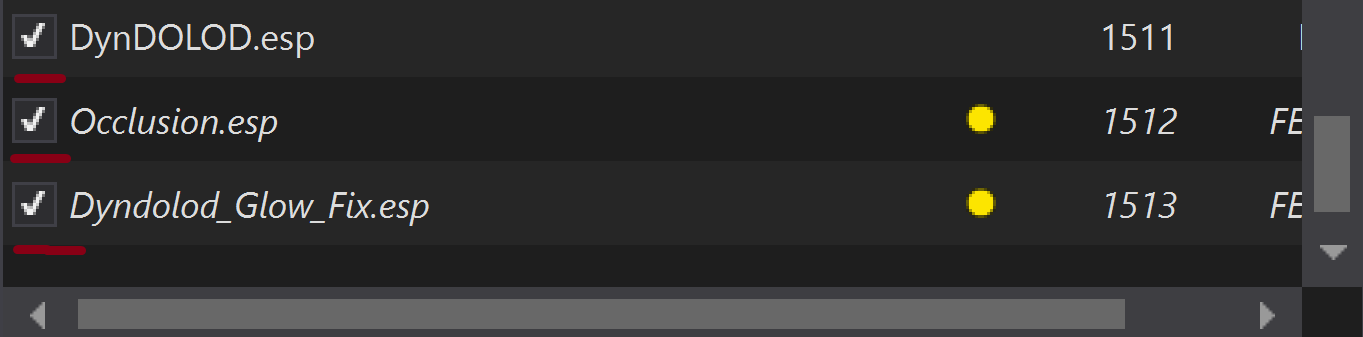
In right section with plugins, scroll to the bottom and disable these plugins (we will enable them again later):
Step 2️⃣ — Launch Synthesis from MO2
Ensure that all antivirus and antimalware applications are temporarily disabled. They can prevent Synthesis from running correctly.
You need the .NET 10 SDK installed, and Synthesis's Data Folder pointed at your Stock Game\Data. Both are covered in step 0️⃣ above - check them before your first run.
This is also the launch method for running patchers. If you are adding or updating a patcher, run Synthesis.exe directly instead - see MO2 mode.
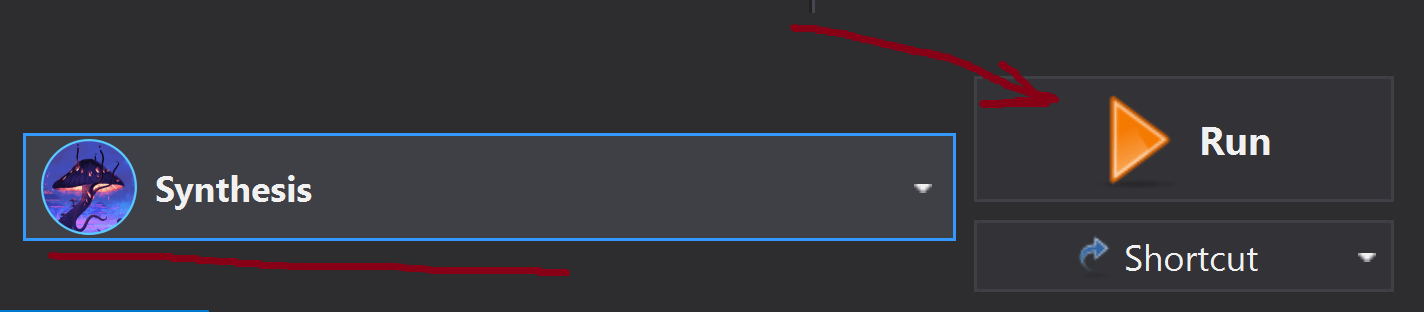
In MO2, in top right corner of the window, click on the dropdown menu and select Synthesis, then click Run:
Step 3️⃣ — Check the patches list
When Synthesis is launched, check out the left pane with patches. They should match this:
-
Synthesis0block: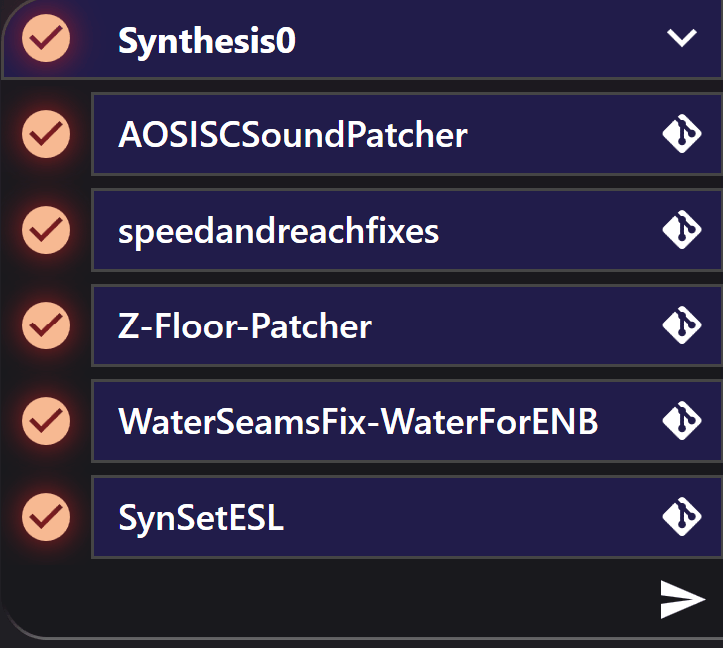
-
Synthesis1block: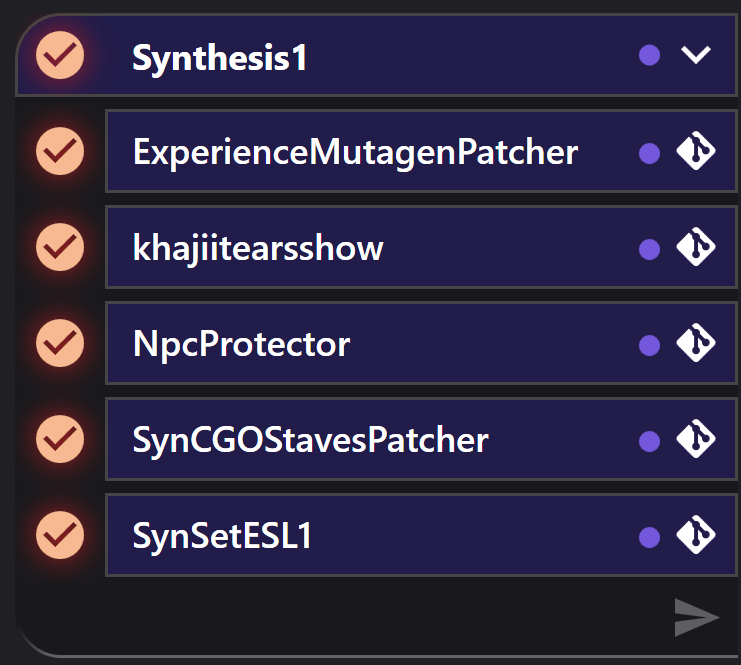
-
Synthesis2block: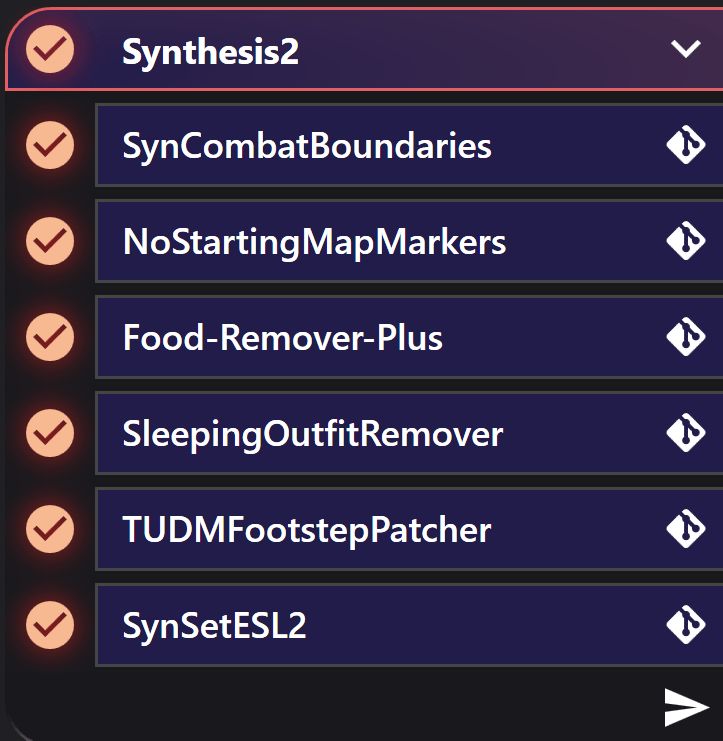 note
noteIf you re-run
Synthesis2, TUDM patch breaks 2 records. In xEdit, findCACO'S BODYmod and forward its changes to Synthesis2.esp (it would beNakedTorsoHighElfandNakedTorsoWoodElf)
Step 4️⃣ — Run Synthesis 3 times
Now, you have to do this:
- Click
Runarrow underSynthesis0in the left pane; - When if finishes, CLOSE SYNTHESIS!
- You will see that
Synthesis0.espappeared in the right pane of MO2, enable it; - Run
Synthesisagain in MO2; - Repeat steps 1-4 for
Synthesis1; - Repeat steps 1-3 for
Synthesis2.
DON'T RUN ALL 3 SYNTHESIS PATCHES IN A ROW (OR ALL AT ONCE)! ALWAYS CLOSE SYNTHESIS AFTER EACH RUN!
Failing to do that will break consistency of the patches!
Step 5️⃣ — Move your new generated Synthesis outputs to a separate mod
-
In
MO2, scroll to the bottom in the left pane, and right click on theADDED MODS - Make your additions below this lineseparator. In the submenu, clickAll Mods, then selectCreate Empty Mod Inside.
You will now be prompted to name your custom mod, this can be named however you want.
tipAdding
[NoDelete]before the name will make the mod not be removed upon updating the list.Upon updating the mod will be deactivated and moved to the bottom of the last separator, and you can simply move it into place and enable it.
Now, right click on the newly created mod and select
Open in Explorer. This will open the mod folder in your file explorer, keep it open. -
In the bottom of
MO2left pane right-click onOverwriteand selectOpen in Explorer. This will open theOverwritefolder in your file explorer. Keep it open.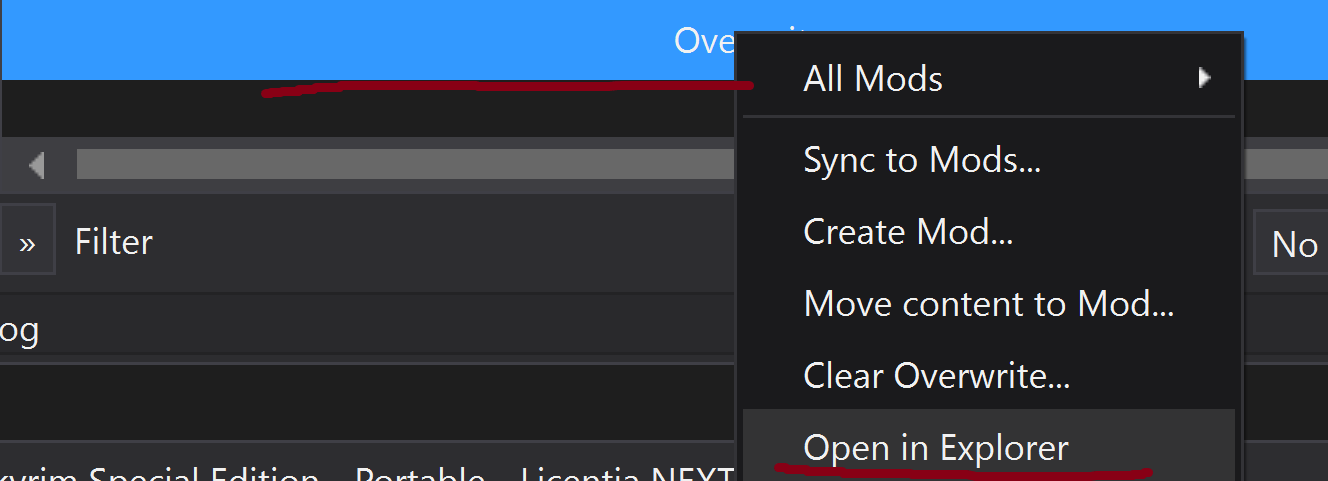
-
Move all 3
Synthesis.esp's from Overwrite to your newly created mod in file explorer. -
Close both file explorers and go back to
MO2. HitF5to refresh it. -
Make sure all 3
Sythesisoutputs are enabled in the plugins list on the right.
Step 6️⃣ — Enable plugins disabled in Step 1️⃣
In right part of MO2 just enable the plugins you disabled in Step 1️⃣'s second part, and you're done!
The final picture should look like this (only the names of plugins matter here, not numbers):